


If you have been blogging for any length of time, you know that internal linking is important for SEO. You have probably read that you should link related posts together, use descriptive anchor text, and build topic clusters. And you probably agree with all of that.
- The Internal Linking Problem Every WordPress Blogger Faces
- Why Manual Internal Linking Fails at Scale
- You cannot remember everything you have written
- New posts leave old posts unlinked
- Consistency is impossible
- How Automatic Internal Linking Works
- What a Good Auto Internal Linker Plugin Does
- How to Set Up Automatic Internal Linking in WordPress
- Is Automatic Internal Linking Safe for SEO?
- What Results to Expect and When
- Final
But here is the reality: going back through dozens or hundreds of existing posts to manually add internal links is an enormous amount of work. And doing it correctly for every new post you publish takes time you often do not have.
The solution is automatic internal linking, a method that handles all of this for you in the background, inserting contextual internal links into every page on your site without any manual effort. Here is exactly how it works and how to set it up on your WordPress site today.
The Internal Linking Problem Every WordPress Blogger Faces
Internal linking is one of those SEO tasks that everyone knows they should do but most people do inconsistently or not at all. The reasons are straightforward:
- Adding internal links to every new post requires remembering all your existing relevant content
- Going back through old posts to add links to new content is tedious and time-consuming
- On a site with 50, 100, or 500 posts, keeping track of which posts should link to which is nearly impossible manually
- Easy to forget, easy to skip, easy to do inconsistently
The result is that most WordPress sites have a poor internal linking structure full of orphan pages that Google ignores, popular posts that hoard authority without sharing it, and new content that sits unlinked and unranked for months.
The cost of poor internal linking: Pages on your site with no internal links pointing to them may never rank on Google at all regardless of how good the content is. Google simply cannot find and evaluate what it cannot reach through your site’s link structure.
Why Manual Internal Linking Fails at Scale
Manual internal linking works reasonably well when a site has 10 to 20 posts. You can keep them all in your head and link them sensibly. But the moment a site grows beyond 30 to 40 posts, manual linking becomes unreliable for several reasons:
You cannot remember everything you have written
When writing a new post about “WordPress caching plugins,” do you remember every other post across your site that mentions caching, performance, or WordPress plugins? Probably not. That means you miss linking opportunities that could pass authority and engage readers.
New posts leave old posts unlinked
Every time you publish a new post, it should ideally be linked from all existing relevant posts. Going back and manually updating 10 old posts every time you publish something new adds 30 to 60 minutes to every publication cycle. Most bloggers skip this step entirely.
Consistency is impossible
Some posts end up with 8 internal links. Others have none. This inconsistency means your site’s authority distribution is random rather than strategic, exactly the opposite of what Google wants to see.
How Automatic Internal Linking Works
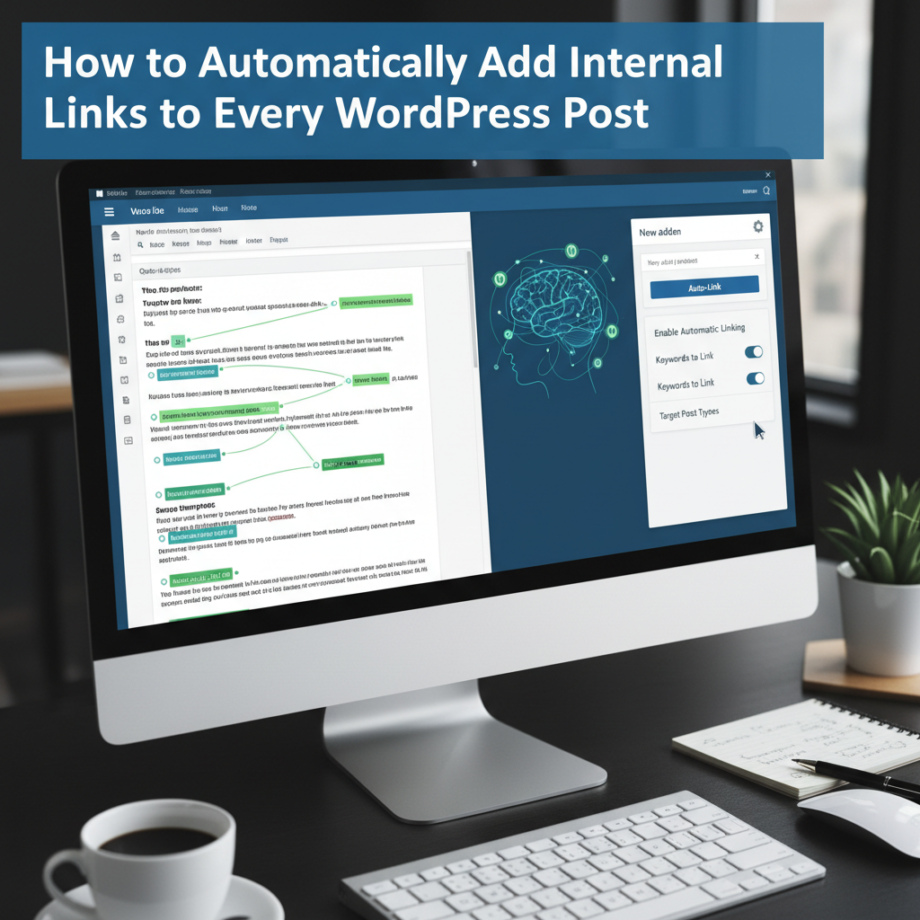
Automatic internal linking uses a WordPress plugin to intelligently insert internal links into your content without you doing anything manually. Here is the technical process behind it:
1. Keyword mapping The plugin builds a keyword-to-URL map from all your published posts. For example, it learns that your post “Best WordPress caching plugins” should be linked whenever the phrase “caching plugins” or “WordPress performance” appears in other posts.
2. Output buffering When any page on your site loads, the plugin intercepts the HTML output before it is sent to the browser. This happens at display time, not in the database, so your actual post content is never modified.
3. Contextual matching The plugin scans the page content for keywords that match its keyword-to-URL map and inserts hyperlinks around matching phrases automatically.
4. Smart filtering Good plugins apply rules to keep linking natural, not linking a keyword if it already has a link on that page; not linking more than a set number of times per post; not linking a post to itself; and not creating links inside headings or existing links.
Zero database writes: The best automatic internal linking plugins work entirely through output buffering. They intercept the page HTML at display time and inject links before sending it to the browser. Your actual WordPress database is never touched, meaning you can disable the plugin at any time, and all links disappear instantly with no cleanup needed.
What a Good Auto Internal Linker Plugin Does
Not all automatic internal linking plugins are equal. Here is what separates a genuinely useful plugin from one that causes more problems than it solves:
| Feature | Why It Matters |
|---|---|
| Zero database writes | Your post content is never altered; disable the plugin and links vanish instantly |
| Per-keyword URL control | You decide exactly which keywords link to which pages |
| Max links per post limit | Prevents over-linking, which looks spammy to Google |
| Self-link prevention | A page never links to itself, which is both useless and confusing |
| Heading exclusion | Links inside H1, H2, H3 headings look unnaturally good. Plugins skip these |
| Existing link detection | If a keyword is already manually linked on a page, the plugin does not add a second link |
| Works with all themes | No conflicts with Elementor, Divi, Avada, or any other WordPress theme |
| Cache plugin compatible | Works with LiteSpeed Cache, WP Rocket, and W3 Total Cache |
| Works with Yoast and RankMath | SEO plugin integration ensures links use appropriate anchor text |
How to Set Up Automatic Internal Linking in WordPress
1. Install Auto Internal Linker: Download and install Auto Internal Linker by KentDevTools from your WordPress dashboard. Go to Plugins → Add New → Upload Plugin → select the zip file → install and activate.
2. Build your keyword map Go to the plugin settings and add your keywords and their target URLs. For each important post, add 2 to 4 keywords or phrases that should automatically link to it. Use your focus keywords and natural variations.
3. Set your limits. Configure the maximum number of links per post (3 to 5 is a good starting point for most sites). Set which post types the plugin should work on posts, pages, or both.
4. Test on a sample post Open a few existing blog posts and verify the links are appearing correctly, using natural anchor text, and linking to the right destination pages.
5. Let it run. Once configured, the plugin works automatically on every page load for all existing posts and every new post you publish. No ongoing manual work required.
Is Automatic Internal Linking Safe for SEO?
Yes, automatic internal linking is completely safe for SEO when implemented correctly. Google does not penalize sites for using plugins to manage their internal links, any more than it penalizes sites for using Yoast SEO to manage their meta descriptions.
The key is using a plugin that maintains natural, relevant, and contextual links. Problems only arise when automatic linking is done poorly, for example, linking the same keyword on every single occurrence throughout a long post or inserting irrelevant links just to increase link count. A well-configured plugin with appropriate limits produces exactly the kind of natural internal link profile that Google rewards.
The best approach is automation for discovery and insertion, combined with periodic human review to confirm the links remain relevant and natural as your content evolves.
What Results to Expect and When
| Timeframe | What You Will See |
|---|---|
| Week 1–2 | Orphan pages start getting discovered by Google as they now have links pointing to them |
| Week 3–6 | Google Search Console shows improved crawl coverage more pages indexed |
| Week 4–8 | Pages previously stuck on page 3 or 4 of Google start climbing toward page 1 |
| Month 2–3 | Bounce rate drops and pages per session increases as visitors follow internal links |
| Month 3–6 | Topical authority builds rankings improve across clusters of related content |
| Ongoing | Every new post you publish is automatically connected to relevant existing content from day one |
Final
Automatic internal linking removes the biggest barrier to good SEO on WordPress sites: the time and effort required to manually link hundreds of posts together. With the right plugin, your site builds a comprehensive internal link network automatically, improving crawlability, passing authority efficiently, and keeping visitors engaged longer.
Set it up once, configure your keywords and limits carefully, and let it run. Every post you publish from that point on is automatically connected to your most relevant existing content from the moment it goes live, giving it the best possible foundation for Google rankings.