


Getting Started:
Introduction: Postzyn plugin by KentDevTools
Overview
- Getting Started:
- Introduction: Postzyn plugin by KentDevTools
- Requirements—Postzyn plugin by KentDevTools
- Installation — Postzyn plugin by KentDevTools
- Configuration:
- Adding Sources — Postzyn plugin by KentDevTools
- Settings — Postzyn plugin by KentDevTools
- Branding — Postzyn plugin by KentDevTools
- Usage:
- Dashboard — Postzyn plugin by KentDevTools
- Run & Stop Controls — Postzyn plugin by KentDevTools
- Export & Import — Postzyn plugin by KentDevTools
- Reference:
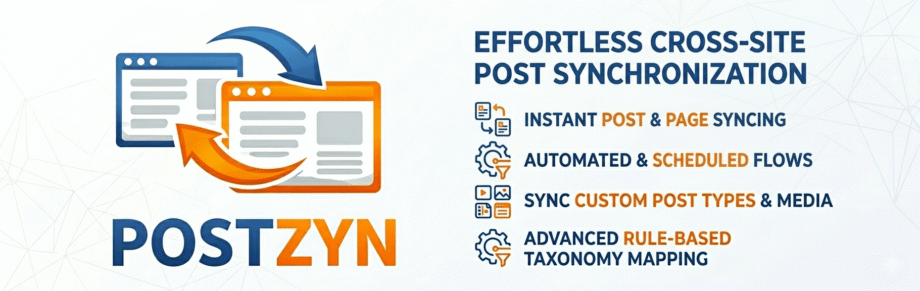
Postzyn plugin by KentDevTools is a specialized WordPress automation plugin designed to simplify content aggregation and network management. It allows website owners to automatically fetch, clean, and publish content from various sources directly to their WordPress site, ensuring a consistent flow of information without manual overhead.
Key Features
- RSS Feed Integration: Add multiple RSS feed URLs as sources to monitor for new content.
- Smart Duplicate Protection: Employs a triple-layer check using URLs, titles, and slugs to prevent re-posting the same content.
- Automated Content Cleaning: Fetched articles are automatically stripped of unwanted elements and formatted for SEO.
- Featured Image Support: The plugin automatically downloads and attaches featured images to newly created posts.
- Branded Footers: Injects a custom footer with your site name into every synchronized post.
- Export/Import Configuration: Easily back up your settings or transfer them to other WordPress installations.
How It Works
- Source Configuration: Users input RSS feed URLs into the Sources page within the WordPress dashboard.
- Scheduled Monitoring: Postzyn checks these feeds based on a user-defined schedule.
- Content Processing: New articles are retrieved, sanitized for a clean layout, and optimized for search engines.
- Automatic Publishing: Posts are created on the destination site with images and branding applied automatically.
- Dashboard Control: Users have full “Run” and “Stop” controls to manage the automation process at any time.
Target Audience
Postzyn plugin by KentDevTools is built for niche site owners looking to scale content, curators managing multiple information feeds, and developers who need a reliable, “set and forget” synchronization solution for WordPress networks.
Requirements—Postzyn plugin by KentDevTools
System Prerequisites
To ensure Postzyn plugin by KentDevTools operates correctly, your hosting environment should meet the following technical standards:
- PHP Version: PHP 7.4 or higher is required for optimal performance and security.
- WordPress Version: Compatible with WordPress 5.8 and above.
- PHP Extensions: The
curlandopensslextensions must be enabled on your server to allow the plugin to fetch external RSS feeds and handle secure API requests. - Memory Limit: A minimum of 256MB is recommended, especially if you plan to synchronize large amounts of content or high-resolution images simultaneously.
Hosting Compatibility
Postzyn plugin by KentDevTools is designed to work seamlessly with major managed WordPress hosts, including SiteGround, Kinsta, WP Engine, and Namecheap. These providers typically meet all necessary requirements out of the box.
WordPress Cron (WP-Cron)
The plugin relies on the built-in WordPress Cron system to trigger scheduled content fetches. If you notice that posts are not appearing automatically, it may be because your host has disabled WP-Cron for performance reasons. In such cases, you can set up a manual server cron job to ensure the synchronization runs every 5 minutes:
*/5 * * * * wget -q -O - https://yoursite.com/wp-cron.php?doing_wp_cron > /dev/null 2>&1
Service Access
- External Connections: Your server must be able to make outbound requests to the RSS feed URLs you provide.
- File Permissions: The
wp-content/uploadsdirectory must be writable so the plugin can successfully download and attach featured images to your imported posts.
Installation — Postzyn plugin by KentDevTools
Getting Started
Before installing Postzyn, ensure your server meets the minimum requirements, including PHP 7.4+ and the curl extension. To begin the installation, follow these steps:
- Upload the Plugin: In your WordPress dashboard, navigate to Plugins → Add New → Upload Plugin. Select the
Postzyn plugin by KentDevTools .zipfile from your computer. - FTP Alternative: If you prefer using FTP, upload the unzipped
postzyn-aifolder directly to the/wp-content/plugins/directory on your server. - Activation: Once the files are uploaded, go to the Plugins menu in your WordPress admin and click Activate for Postzyn by KentDevTools.
Initial Configuration
After activation, a new Postzyn plugin by KentDevTools menu will appear in your sidebar. You should perform the following initial checks:
- Sources: Head to the Sources page to add your first RSS feed URLs.
- Settings: Configure your global preferences, such as default categories, featured image handling, and branded footer text.
- Cron Check: Ensure your WordPress Cron is active so the plugin can perform scheduled content fetches.
Uninstalling Postzyn
If you need to remove the plugin, the process is straightforward:
- Deactivation: Go to Plugins → Installed Plugins and click Deactivate. This stops all automated synchronization but keeps your settings and history in the database.
- Full Removal: To completely purge the plugin, click Delete after deactivating. The built-in
uninstall.phpscript will automatically remove all Postzyn-specific database tables, options, and scheduled cron events.
Note that deleting the plugin is permanent and removes all source history. It is recommended to export your configuration from the settings page if you plan to reinstall later.
Configuration:
Adding Sources — Postzyn plugin by KentDevTools
Adding a New Content Source
To begin synchronizing content, you must define your source feeds within the Postzyn dashboard. Follow these steps to add a new source:
- Open the Sources Page: In your WordPress admin, navigate to Postzyn → Sources.
- Enter Feed URL: Paste the RSS or Atom feed URL into the provided input field.
- Assign Categories: Select the local WordPress categories where you want the fetched posts to be filed.
- Save Sources: Click the Save Sources button. The plugin will now include this URL in its next scheduled synchronization run.
Finding RSS Feed URLs
Most websites publish their content via RSS. If you are unsure of a site’s feed address, try these common patterns:
https://example.com/feed/https://example.com/rss/https://example.com/feed.xmlhttps://example.com/rss.xml
You can also inspect the page source for <link rel="alternate" type="application/rss+xml"> tags or use browser extensions designed to auto-detect feeds.
Management & Troubleshooting
- Source Status: Each source shows its current status in the dashboard. If a feed is unreachable, the plugin will log a cURL error.
- Connection Issues: Some websites use firewalls or paywalls to block automated scrapers. If a source consistently fails, it may be due to these external restrictions.
- Sync Control: You can manually trigger a check for all saved sources by using the Run Now button, rather than waiting for the automated schedule.
- Cleanup: Deleting a source from the list stops future synchronization from that URL but does not delete the posts already imported into your database.
Settings — Postzyn plugin by KentDevTools
General Settings
The General Settings tab allows you to control the fundamental behavior of the synchronization engine. You can customize the following options:
- Sync Interval: Choose how often Postzyn checks your sources for new content. Available intervals typically range from every 5 minutes to once daily.
- Post Status: Set whether newly fetched articles are published immediately or saved as “Draft” or “Pending” for manual review.
- Post Author: Select a local WordPress user to be assigned as the author for all imported posts.
- Default Category: Define a fallback category to be used if a specific source does not have a category assigned.
Content & Sanitization
Postzyn plugin by KentDevTools includes built-in tools to ensure the content remains clean and professional once it arrives on your site:
- Remove Author: When enabled, the plugin automatically identifies and strips original author names, bylines, and journalist titles from the copied content.
- Branded Footer: This option appends a custom footer containing your site name and URL to the bottom of every synchronized post, helping to maintain site identity.
- Image Handling: Choose whether to download images to your local media library or hotlink them from the source. Enabling “Set Featured Image” will automatically assign the primary image from the feed to the WordPress post.
Saving and Deployment
- Save All Settings: After making changes, click this button to update the configuration.
- Cron Update: The plugin automatically updates the WordPress Cron schedule whenever the Sync Interval is modified, ensuring the timing remains accurate.
- Best Practice: It is highly recommended to set the Post Status to Draft when first setting up a new source. This allows you to verify the formatting and sanitization rules before content goes live to your audience.
Branding — Postzyn plugin by KentDevTools
Overview
Postzyn plugin by KentDevTools includes built-in branding features to ensure that all synchronized content maintains your site’s identity. The primary branding tool is a professional footer appended to every imported post, providing clear attribution and internal linking back to your homepage.
Configuring Your Brand
To customize how your brand appears on synchronized posts, navigate to Postzyn → Settings → Branding. You can configure the following fields:
- Your Site Name: Enter the name of your website or brand. This text appears prominently in the footer of every synchronized post.
- Your Site URL: Provide the link visitors should follow when clicking on your brand name in the footer.
- Default Values: By default, Postzyn automatically pulls your WordPress “Site Title” and “WordPress Address” from your general site settings, but you can override them here for specific network branding.
The Branded Footer
The footer is designed to look professional on any WordPress theme. It features:
- Clean Design: A purple left-border accent that distinguishes the attribution from the main article body.
- Clickable Links: Your site name acts as a link to your specified URL, improving internal navigation and SEO.
- Automatic Injection: Once enabled, the footer is added to every new post during the synchronization process.
Management Options
- Disabling Branding: If you prefer a “white label” look, you can toggle the Branded Footer to OFF in the Content Settings.
- Persistence: Note that disabling the footer only affects posts imported after the setting is changed. It will not retroactively remove footers from posts already published in your database.
- Professional Appearance: The design is optimized to be lightweight and non-intrusive, ensuring it adds value to the reader experience without cluttering the layout.
Usage:
Dashboard — Postzyn plugin by KentDevTools
Overview
The Postzyn plugin by KentDevTools Dashboard serves as the central command center for your content automation. It provides a real-time overview of the plugin’s status, recent activity, and quick-action controls to manage your synchronization tasks.
Status Monitor
At the top of the dashboard, you will find the current operational status of the plugin:
- RUNNING (Green): Postzyn is active and will continue to fetch content from your sources based on the defined schedule.
- STOPPED (Red): Automated synchronization is paused. You must click the “Run Now” button to resume the automated schedule or trigger a manual sync.
Activity Log
The live activity log tracks every action taken by the plugin. The entries are color-coded for quick identification:
- Green (Checkmark): Post successfully fetched and published to your site.
- Blue (Antenna): The plugin is currently checking a feed or has just started a session.
- Red (Cross): An error occurred, and the post failed to publish.
- Yellow (Warning): Indicates a feed parsing issue or a minor warning.
- White (Magnifying Glass): A new article has been discovered in one of your feeds.
- Gray (Sleep): The synchronization task is complete, and the engine is idling until the next scheduled run.
Recent Activity Table
The dashboard includes a table displaying the last 10 posts published by Postzyn plugin by KentDevTools . This allows you to verify the source of the content and provides direct links to view the newly created posts on your live website.
Manual Controls
While Postzyn plugin by KentDevTools is designed for “set and forget” automation, the dashboard provides a Run Now button. This allows you to bypass the scheduled timer and immediately scan all sources for new content, which is particularly useful after adding a new RSS feed or modifying your settings.
Run & Stop Controls — Postzyn plugin by KentDevTools
Manual and Automated Control
The Run and Stop buttons on the Postzyn plugin by KentDevTools dashboard provide complete authority over your content synchronization schedule. These controls allow you to switch between fully automated operation and manual management.
Run Now (Start)
The ▶ Run Now button serves two primary functions:
- Manual Fetch: It triggers an immediate scan of all your saved RSS sources for new content, bypassing the scheduled timer.
- Resume Automation: If the plugin was previously stopped, clicking this button restarts the automated schedule. The plugin will then continue to check for updates based on your configured sync interval.
Stop (Pause)
The ■ Stop button completely halts all background activities. When you click Stop:
- Cron Suspension: The WordPress cron schedule associated with Postzyn is cleared.
- Pause Content: No new posts will be fetched or published automatically until the plugin is restarted.
- Status Confirmation: The dashboard status badge will change to a red STOPPED indicator. For safety, the plugin will ask for a confirmation before finalizing this action to prevent accidental pauses.
Log Management
In addition to timing controls, the dashboard includes a 🗑 Clear Log option.
- Clean Workspace: This wipes the visible activity log, which is useful for clearing out old error messages or successful sync notifications.
- Data Safety: Clearing the log only affects the display; it does not delete your published posts, source settings, or historical data.
When to Use These Controls
- Testing: Use “Run Now” immediately after adding a new source to verify that the content is being pulled and sanitized correctly.
- Maintenance: Use “Stop” if you are performing significant theme changes or database maintenance and want to ensure no new content is added during the process.
- Troubleshooting: If a feed appears stuck, clearing the log and using “Run Now” can help you see a fresh set of status updates and error codes.
Export & Import — Postzyn plugin by KentDevTools
Overview
Postzyn plugin by KentDevTools provides a simple way to back up your configuration or migrate your setup to a different WordPress site. By using the Export and Import tools, you can transfer your entire automation strategy, including your sources and branding rules, without manual reconfiguration.
Exporting Your Settings
- Generate Export: Navigate to Postzyn → Export / Import.
- Download File: Click the Export Configuration button. The plugin will generate a JSON file containing all your current settings.
- Storage: Keep this file in a secure location as a backup of your sources, automation intervals, and branding preferences.
Importing Settings
- Choose File: On the destination site, go to Postzyn → Export / Import and select your previously exported JSON file.
- Upload & Process: Click Import Configuration.
- Automatic Update: Once the import is complete, Postzyn instantly restores your sources and branding. The WordPress Cron schedule is also updated automatically to match your imported sync interval.
What is Included?
| Category | Data Included |
| Sources | Name, Feed URL, assigned categories, and active states. |
| Automation | Sync interval, post status, and default author/category. |
| Content Rules | Author removal toggle and branded footer status. |
| Branding | Your custom site name and site URL. |
Important Considerations
- Overwriting Data: Importing a configuration will overwrite all existing Postzyn settings on the destination site. Ensure you have a backup of your current settings if you need them.
- Post History: The export does not include your posting history. Each WordPress installation maintains its own independent record of which articles have already been published to avoid duplicates locally.
- Domain Specifics: If you are migrating to a site with a different domain, remember to update your Branding settings (Site URL) after the import is complete.
Reference:
RSS Feed URLs — Postzyn plugin by KentDevTools
Overview
Postzyn relies on valid RSS or Atom feeds to fetch and synchronize content. While the plugin is designed to be highly compatible with various feed structures, success depends on the source website providing a properly formatted XML feed.
Tested & Recommended Feeds
To help you get started, here are several verified RSS feed URLs across popular niches:
| Category | Source | RSS Feed URL |
| Technology | TechCrunch | https://techcrunch.com/feed/ |
| Technology | The Verge | https://www.theverge.com/rss/index.xml |
| Technology | Wired | https://www.wired.com/feed/rss |
| Business | Wall Street Journal | https://feeds.a.dj.com/rss/WSJcomUSBusiness.xml |
| Business | Entrepreneur | https://www.entrepreneur.com/latest.rss |
| News | BBC World | https://feeds.bbci.co.uk/news/world/rss.xml |
| News | Reuters Top News | https://feeds.reuters.com/reuters/topNews |
| Science | ScienceDaily | https://www.sciencedaily.com/rss/top/science.xml |
| Science | NASA News | https://www.nasa.gov/rss/dyn/breaking_news.rss |
Best Practices for Selecting Sources
- Feed Availability: Feed URLs can change over time. If a source stops synchronizing, visit the source website directly to check for an updated RSS link.
- Content Rights: Always ensure you have the appropriate permissions or are following “Fair Use” guidelines when synchronizing content from third-party publishers.
- Alternative Feeds: If a specific feed from a large publisher (like The New York Times or CNN) fails to parse, look for their specific “Section Feeds” (e.g., Technology only) which are often more reliable than their “Home Page” feeds.
Troubleshooting Feed Errors
If a feed shows an error in the Postzyn dashboard, it may be due to:
- Bot Protection: Some websites use Cloudflare or similar services to block automated requests from servers.
- Paywalls: Feeds that require a subscription will generally not provide the full content needed for synchronization.
- Invalid XML: If the source website has a coding error in their RSS output, Postzyn will log a “Parse Issue” in the activity log.
FAQ — Postzyn plugin by KentDevTools
Common Questions & Troubleshooting
- Why are posts not appearing automatically?Postzyn relies on the WordPress Cron system. If your hosting provider has disabled WP-Cron for performance reasons, the scheduled fetches will not trigger. To resolve this, you can set up a manual server cron job via cPanel or your hosting dashboard to run every 5 minutes.
- What does “Parse Issue” or “Feed Error” in the log mean?This indicates that the provided URL did not return a valid RSS or Atom XML format. This often happens if the URL is a standard website homepage instead of a feed, if the feed requires a login, or if the source site is temporarily down. Ensure your URL ends in
/feed/or/rss/and displays XML code when opened in a browser. - Will deactivating the plugin leave orphaned tasks?No. Postzyn includes a deactivation hook that automatically clears all scheduled cron jobs when you turn the plugin off. This ensures no background processes continue to run once the plugin is inactive.
- How do I completely wipe all Postzyn data?If you wish to remove every trace of the plugin from your database, go to Plugins, deactivate Postzyn, and then click Delete. The built-in
uninstall.phpscript will automatically purge all dedicated database tables, settings, and post metadata. - Does Postzyn support featured images?Yes. The plugin is designed to automatically detect, download, and attach the primary image from an RSS feed item as the featured image for your local WordPress post.
- Can I test a feed without waiting for the schedule?You can use the Run Now button on the Dashboard at any time. This forces an immediate scan of all your active sources so you can verify that content is being pulled and sanitized correctly.